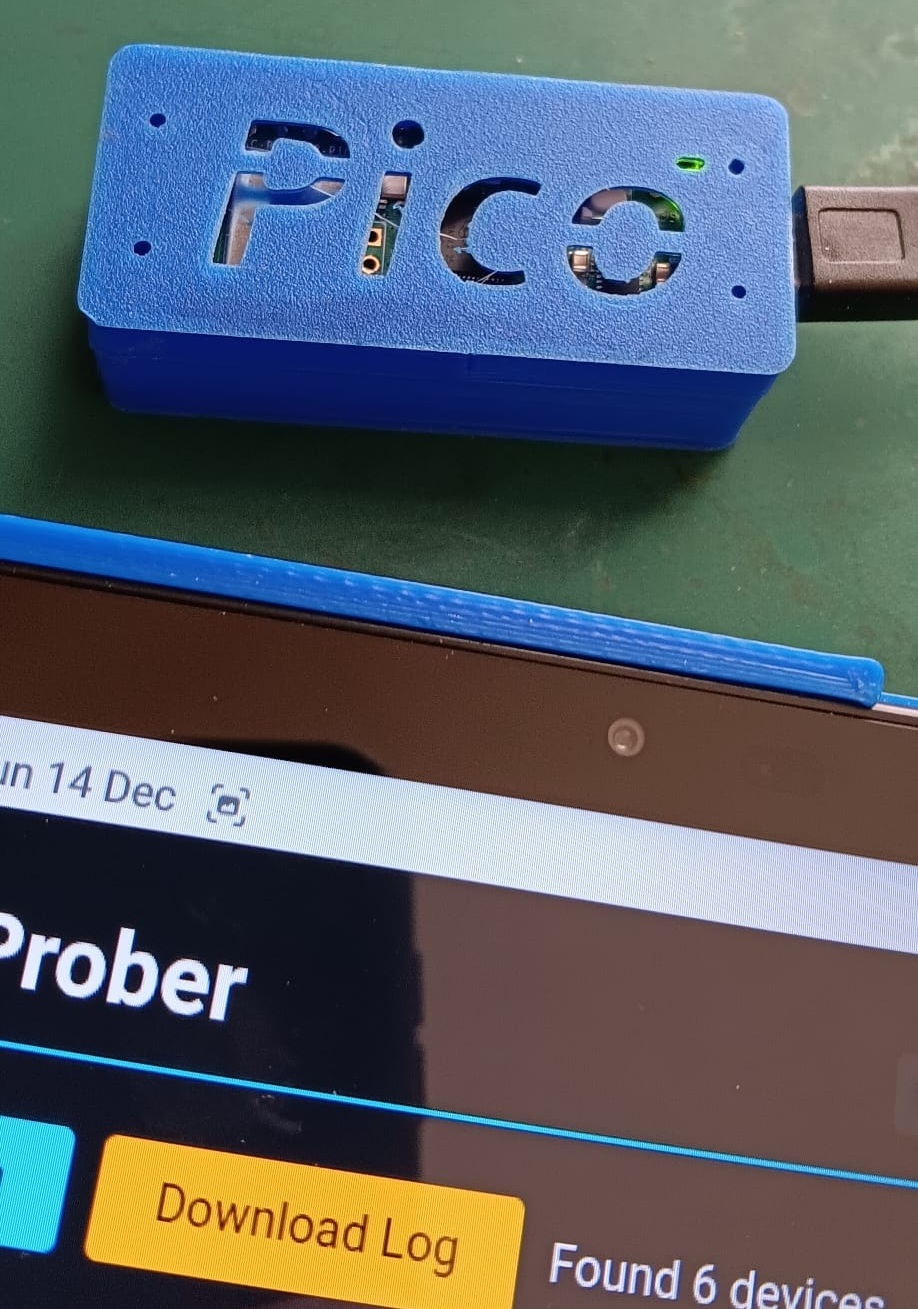
In Part 1, I introduced Ziggy, the Raspberry Pi Pico W node designed to sniff Bluetooth signals from the street.
The hardware was easy. I soldered the OLED, wired the NeoPixels, and 3D printed a case. It looked the part. I wrote a simple Python script to scan for devices and upload them. I plugged it in, watched the green light flicker, and went to bed feeling like a genius.
By morning, Ziggy was dead.
The screen was frozen, the LED was stuck on “uploading,” and the device was hotter than a fresh coffee. I rebooted it. It ran for 4 hours and died again. I had stumbled into the classic embedded engineering nightmare: The Loop of Death.
The Problem: The “Storage Trap”
The Pico W is a powerful microcontroller, but it isn’t a server. It has limited flash storage (about 2MB available for files). My initial code had a fatal flaw: It assumed the Wi-Fi would always work.
Here is the crash logic:
- Ziggy scans for 10 minutes and saves
log_001.csv. - It tries to upload. The Wi-Fi fails.
- Ziggy shrugs, deletes nothing, and starts scanning
log_002.csv.
Eventually, the flash storage hits 100%. The code tries to write to a full disk, throws OSError: [Errno 28] No space left on device, and the whole system panics and reboots. When it wakes up, the disk is still full, so it crashes again immediately. Infinite loop. Brick.
The Fix: The “Fuel Gauge” Logic
I realized I couldn’t just write a scanner; I had to write an Operating System that performed triage.
I wrote a routine called get_storage_stats() using MicroPython’s low-level uos library to monitor the disk usage in real-time.
Python
def get_storage_stats():
    """Returns storage usage percentage (0.0 to 1.0)."""
    try:
        # Query the filesystem stats
        s = uos.statvfs('/')
        total_blocks = s[2]
        free_blocks = s[3]
        used_pct = (total_blocks - free_blocks) / total_blocks
        return used_pct
    except:
        return 1.0 # Assume full on error to trigger safety
The “Storage Trap” Routine
With the sensors in place, I wrote the Storage Trap. This is a blocking loop in the main mission_control function.
If storage exceeds 80%, the device declares a generic emergency. It stops all scanning (to prevent creating new data) and enters a dedicated “Upload & Purge” loop. It refuses to leave this mode until storage drops below 40%.
Python
async def mission_control():
    while True:
        # 1. SAFETY CHECK (CRITICAL STORAGE TRAP)
        usage = get_storage_stats()

        if usage > STORAGE_CRITICAL_PCT: # 80%
            set_unified_status("CRIT", "Storage > 80%!", "FORCING UP", 0)
            notify('ERROR', "Critical Storage Trap Engaged")

            # TRAP LOOP: Stay here until we are safe (< 40%)
            while get_storage_stats() > STORAGE_RESUME_PCT:
                # Force upload, but SKIP the scan phase
                await run_upload_cycle(critical=True)
                await asyncio.sleep(30)

            notify('OFF', "Storage Trap Cleared")
This makes the device self-healing. If my home internet goes down for a week, Ziggy fills up, stops scanning, and patiently waits. The second the Wi-Fi returns, it drains the buffer and automatically resumes its watch.
Visualizing the Invisible: The OLED Bar Graph
Since I couldn’t SSH into a device sitting on a window sill to check its status, I needed a “Fuel Gauge” on the physical screen.
I wrote a custom UI function for the SSD1306 OLED. Instead of just printing “Free: 75%”, it draws a rectangle representing the total drive, and fills it based on the usage_pct.
Python
def set_tactical_display(mode, status_line, usage_pct):
    # ... text rendering code ...

    # --- STORAGE BAR GRAPH ---
    # Draw the container box (Outline) at the bottom
    oled.rect(0, 54, 128, 10, 1)

    # Calculate fill width (126 pixels max)
    bar_width = int(usage_pct * 126)

    # Draw the filled portion
    if bar_width > 0:
        oled.fill_rect(1, 55, bar_width, 8, 1)

    oled.show()
Memory Management: The “Blob” Problem
The final hurdle was RAM. The aioble library (Bluetooth) and urequests (Wi-Fi) are both memory-hungry. Running them together caused fragmentation and ENOMEM crashes.
I solved this by enforcing a strict “Sniff OR Squirt” policy.
- Sniff: Wi-Fi radio is physically powered down (
wlan.active(False)). All RAM goes to the BLE buffer. - Squirt: BLE scanner is stopped. Garbage Collector (
gc.collect()) is called manually. Wi-Fi powers up.
This binary toggle ensures the Pico W never bites off more than it can chew.
With the firmware hardened, Ziggy was ready for the long haul. But now I had a new problem: it was generating 20MB of data a day, and I was saving it all as text files.
Next up: Part 3: From CSV Chaos to SQLite Speed – The Backend Evolution.